
ROOM TAGS
3D
Revit room tags are 2D — they vanish the moment the model lands in Navisworks. Room Tags 3D models a real 3D label for every room, from the host model and its links, so the whole team can read room numbers and names in the federated model. Plus an isolated view, ready for NWC.
Version 1.0.0 · Revit 2024–2026 · Free — Fulcrum Hub sign-in
Room tags don't survive the trip to Navisworks.
The model's coordinated, the federation's loaded — and every space is a blank box. Nobody can tell Office 501 from the electrical room.
Revit room tags are 2D annotation — they live on plans and sections, not in the model. And a room itself isn't geometry; it's a calculated volume. Export to NWC and both are gone. The BIM coordinator is staring at unlabeled spaces, cross-referencing a plan PDF on a second monitor.
The manual fix is to model 3D text by hand, room by room — set the height, the font, place it, repeat. Across a few hundred rooms and a stack of linked models, that's a day you don't have.
Room Tags 3D does the whole building in one run:
- Reads every placed room in the host model and any linked models you pick
- Models a real 3D tag — number over name — for each one, in your font and color
- Lays it flat so it reads in plan, or stands it upright for the 3D walk
- Builds an isolated 3D view with only the tags, ready to export to NWC
Every room, labeled in 3D.
54 rooms across a sample tower — tagged, centered, and readable in plan, in one pass.
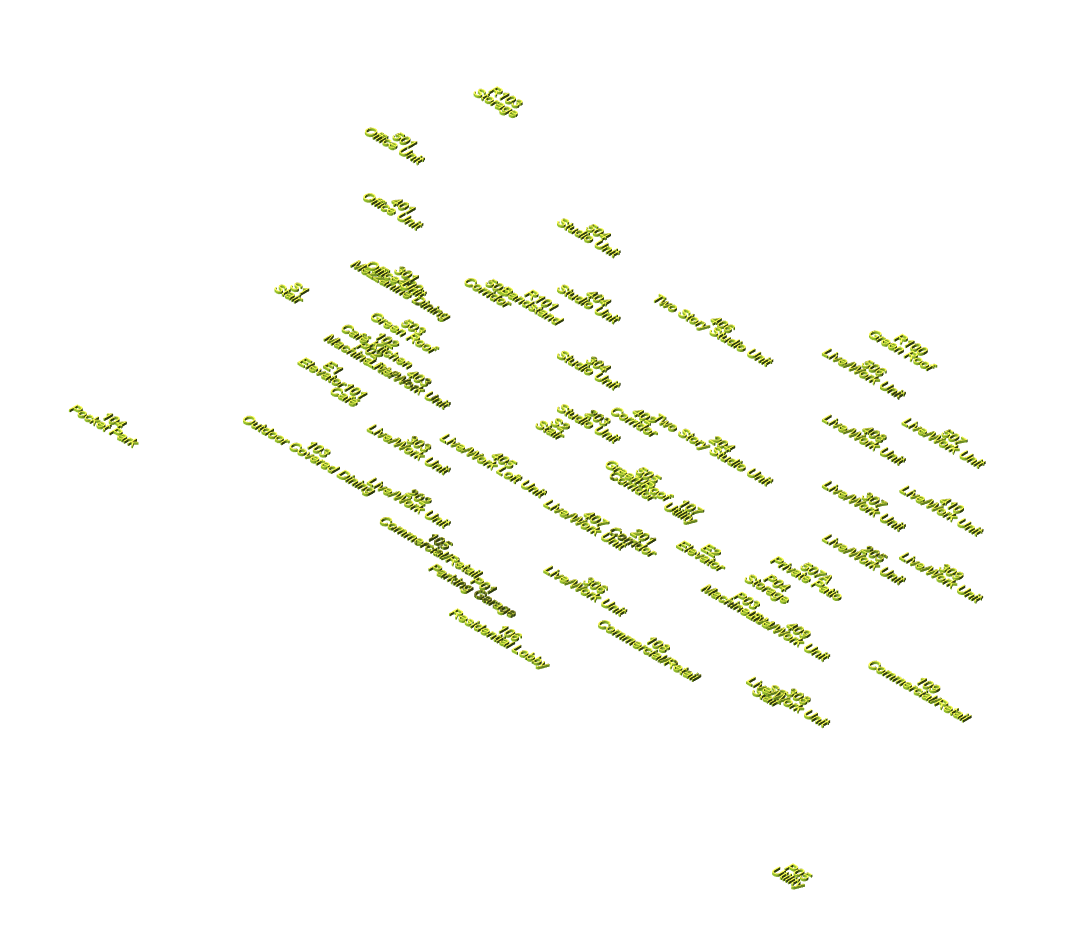
From rooms to NWC-ready tags in one dialog.
One panel on the FULCRUM VDC ribbon. Pick your sources, set the look, hit Create.
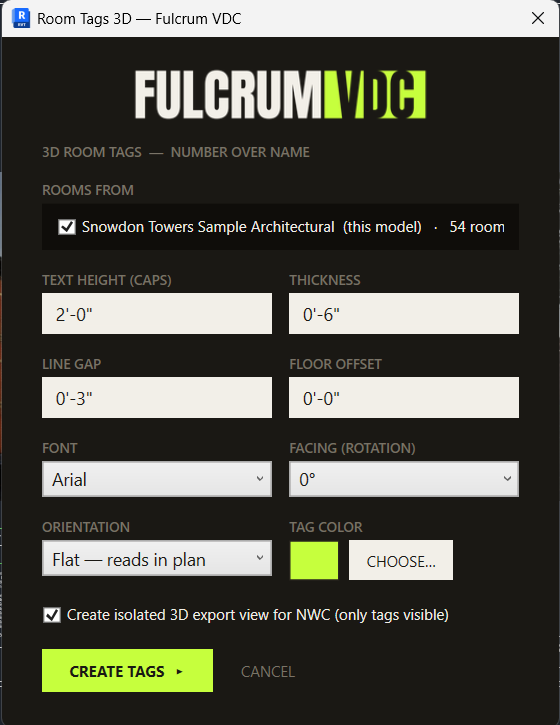
Pick your rooms
The dialog lists the host model and every linked model that has placed rooms. Tick the sources you want.
Set the look
Text height (2'-0" default), thickness (6"), line gap, and floor offset — in your project units. Pick any installed font and any color (lime by default).
Flat or upright
Flat lays the text in the horizontal plane so it reads in a plan view; upright stands it vertically for the 3D walk. Rotate to match your sheet.
Create tags
One 3D solid per room — number over name, true font outlines — placed at the open center of the room footprint, on the finish-floor elevation.
Export view, ready for NWC
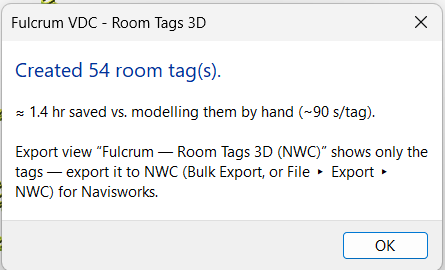
An isolated 3D view named "Fulcrum — Room Tags 3D (NWC)" shows only the tags. Export it to NWC (Bulk Export, or File → Export → NWC) and the labels land in Navisworks.
Tags that behave like model elements.
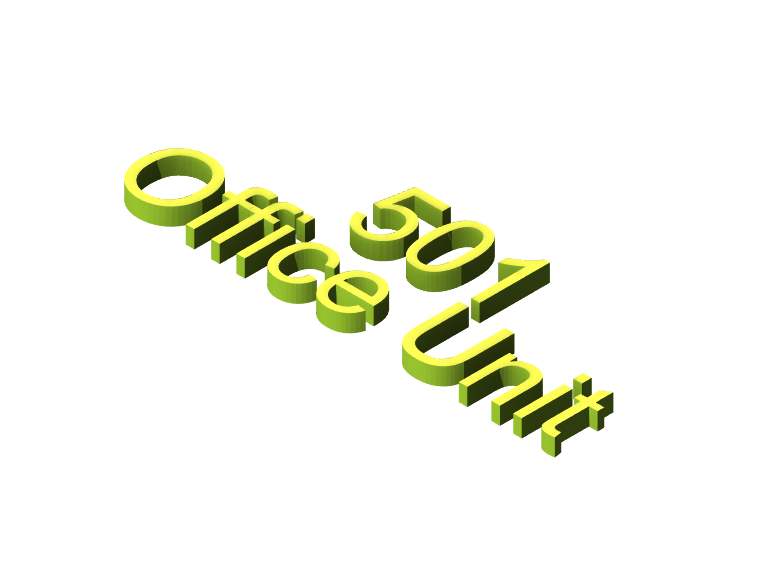
- True font outlines. The text is the real glyph shape of the font you pick — Arial by default, or any installed font.
- Centered, never on a wall. Each tag lands at the largest open spot of the room footprint, so it never falls in a notch or across a partition — even in L-shaped rooms.
- Host + linked models. Reads rooms from the host and the links you choose, placed in the right world location.
- Filterable + schedulable. Each tag is a DirectShape under Generic Models in a "Room Tags 3D" subcategory, stamped with Room Number, Name, and Level — so it isolates, schedules, and drives Navisworks search sets.
- Time back. The run reports the hours saved versus modeling each tag by hand (~90 s/tag).
Because coordination shouldn't fight you.
We built Room Tags 3D because we were tired of hand-modeling text so the BIM team could tell one room from another in the federation. It's our way of giving the AEC community a hand.
Free, no card, no trial clock. A one-time Fulcrum Hub sign-in on first use lets us support the tool and let you know about fixes — that's the whole ask.
For construction. By construction.
Questions, answered.
Why don't Revit room tags show up in Navisworks?
Revit room tags are 2D annotation that live on plans and sections, and a room itself isn't 3D geometry — so neither survives an NWC export. In the federated model the spaces are unlabeled. Room Tags 3D models a real 3D solid label for each room, so the labels travel with the model.
Does it read linked models?
Yes. The dialog lists the host model and every linked model that contains placed rooms; tick the ones you want. Tags are built in the host model at the correct world location for each linked room.
Can I read the tags in a plan view?
Yes — that's the default. Flat orientation lays the text in the horizontal plane so it reads looking down in a plan view. Upright stands the text vertically for walking the 3D model. Either way the tags export to NWC.
How are the tags categorized — can I filter them?
Each tag is one DirectShape under Generic Models, in a dedicated "Room Tags 3D" subcategory, stamped with the room Number, Name, and Level as parameters. So you can isolate them in a view, schedule them, and build Navisworks search sets by room or level.
Which Revit versions are supported?
Revit 2024, 2025, and 2026. (2027 follows once its .NET 10 toolchain ships.)
Is it free? Do I need an account?
It's free. A one-time Fulcrum Hub sign-in is required on first use so we can support the tool and let you know about updates — no card, no trial wall.
SmartScreen warned me about the download.
Expected for now — the build is unsigned, so Windows SmartScreen may flag the first run. Choose More info → Run anyway.
Put room names back in the model.
One run tags every room — host and links — and hands you an NWC-ready view.
Download freeAutodesk, Revit, and Navisworks are trademarks of Autodesk, Inc. Fulcrum VDC, LLC is not affiliated with or endorsed by Autodesk.