
BULK
EXPORT
Stop exporting sheets and views one at a time. Bulk Export is a free add-in on the Fulcrum VDC tab in Revit: pick your formats, filter exactly what you want, name every file from a token template, and send the whole set out in one pass — to every format Revit can produce.
Version 1.2.0 · Revit 2023–2026 · Free — a Fulcrum account is the only sign-in (for tracking, never billing)
Everything on one page.
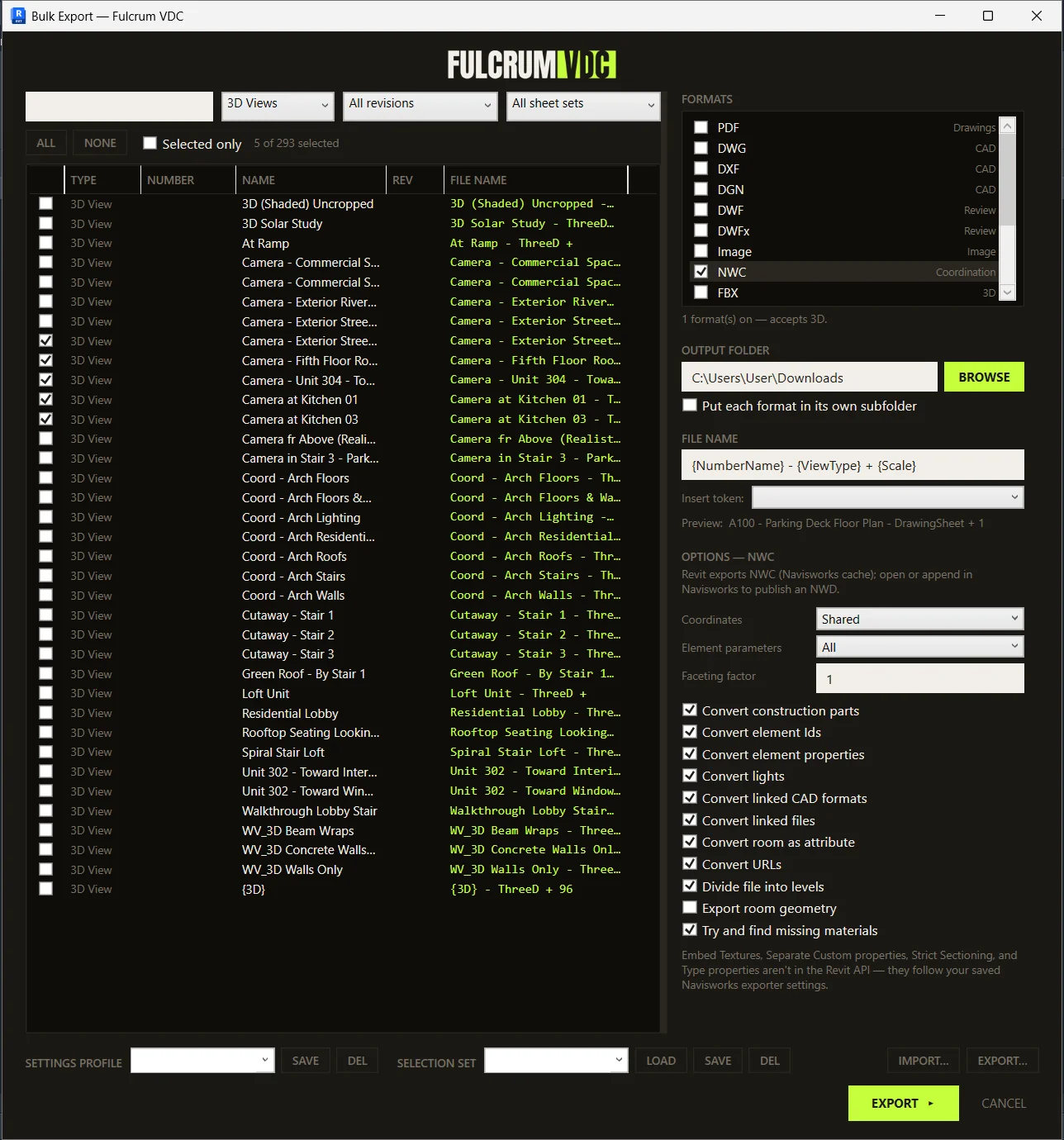
Formats on the right, the model's sheets / views / schedules on the left, naming and output along the bottom. Pick, filter, name, export — no tabs, no wizard.
Issuing a set shouldn't take all afternoon.
A drawing set goes out as PDFs for the GC, DWGs for the civil team, an NWC for coordination, and a schedule as CSV. Revit exports those one format, one item, one dialog at a time.
So a single issue means walking the same list four times, re-typing the same naming convention in four export dialogs, and praying every file lands named the way the GC's portal expects. Miss one and the upload bounces.
Bulk Export collapses that into a single page:
- Check the formats you need — each keeps its full Revit option set
- Filter the model's sheets, views, and schedules down to exactly what's going out
- Set one token-based naming convention and verify every filename before you export
- Hit EXPORT once — the whole set is written, named, and sorted
Every format Revit makes — one at a time, all at once.
If Revit can export it per item, Bulk Export can batch it. Check one format or all of them; the list below shows what each one accepts.
| Format | Sheets | 2D Views | 3D Views | Schedules |
|---|---|---|---|---|
| PDF .pdf | ✓ | ✓ | ✓ | — |
| DWG .dwg | ✓ | ✓ | ✓ | — |
| DXF .dxf | ✓ | ✓ | ✓ | — |
| DGN .dgn | ✓ | ✓ | ✓ | — |
| DWF / DWFx .dwf | ✓ | ✓ | ✓ | — |
| Images .png .jpg .tif .bmp .tga | ✓ | ✓ | ✓ | — |
| NWC .nwc | — | — | ✓ | — |
| FBX .fbx | — | — | ✓ | — |
| OBJ .obj | — | — | ✓ | — |
| STL .stl | — | — | ✓ | — |
| SAT .sat | — | — | ✓ | — |
| Schedule .csv .txt | — | — | — | ✓ |
Whole-model formats sit this one out. IFC and gbXML describe the entire model, not a per-item export, so they're not in the batch. NWC needs Autodesk's Navisworks exporter installed — grab it free from our NWC Exporter Installer.
Name every file from a template — and see it first.
Build a naming convention once, from tokens. The default
{NumberName} gives A-101 - Floor Plan;
add {Revision}, {Date:yyyyMMdd},
{ProjectNumber}, or {p:Any Parameter} to
match whatever the GC's portal demands.
The FILE NAME column shows the exact output name for every item and updates live as you type — so you confirm the whole set is named right before a single file is written, not after the upload bounces.
The preview updates as you edit the template
One page, from open to issued.
What you need: Revit 2023–2026, a free Fulcrum account, and an internet connection for the one-time sign-in. That's the list.
Install & sign in
Unzip the download and run INSTALL.cmd — no admin rights needed. Reopen Revit, open Bulk Export from the Fulcrum VDC tab, and sign in once. Free, shared across every Fulcrum tool on the tab.
Pick your formats
Check one or more formats on the right. Each jumps the OPTIONS panel to its own full Revit settings — PDF colors and scale, NWC coordinates and links, DWG export setup, and so on.
Filter the list
Search, then narrow by type, revision, and sheet set. The revision filter covers views too — it catches views holding a revision cloud of the revision you pick.
Select what's going out
Check items, or use ALL / NONE on the filtered list. Flip on Selected only to collapse the list to just your picks — exactly what will export, nothing else.
Name & verify
Set the token template and watch the FILE NAME column resolve every row live. Confirm the convention is right before you export, not after.
Choose a folder & export
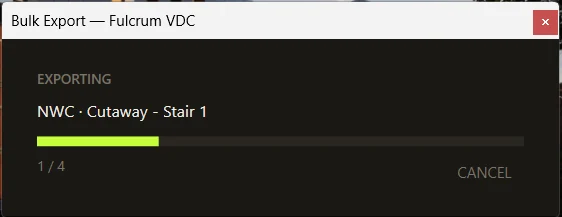
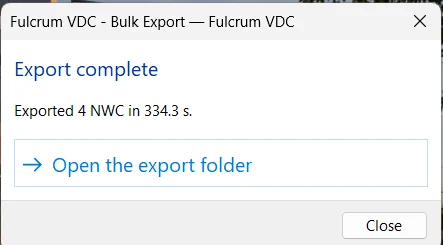
Set the output folder (optionally one subfolder per format) and hit EXPORT. A progress window shows each file; one bad sheet never stops the batch.
Save it for next time
Save your formats and naming as a Settings Profile and your
picks as a Selection Set. Export a profile to a .json
to hand your team a company export standard.
Because everyone re-does this work.
Batch-exporting a set is work every Revit user repeats on every issue — so it shouldn't sit behind a paywall. Bulk Export is free, and it stays free. You sign in once with a free Fulcrum account so we can support the tool and tell you when there's a fix or an update — that's the only reason for the sign-in, and there's no charge and no plan to pick.
For construction. By construction.
Questions, answered.
Which formats can Bulk Export produce?
Every format Revit exports one item at a time: PDF, DWG, DXF, DGN, DWF/DWFx, NWC, FBX, OBJ, STL, SAT, images (PNG/JPG/TIFF/BMP/TARGA), and schedules to CSV/TXT. Each format exposes its full Revit option set. Whole-model formats like IFC and gbXML aren't included — they aren't per-item exports.
Which Revit versions are supported?
Revit 2023, 2024, 2025, and 2026 on Windows 10 or 11. The standalone installer adds the tool for your Windows account — no admin rights required.
Is it really free?
Yes — and it always will be. You sign in once with a free Fulcrum Hub account so we can support the tool and let you know about updates and fixes. No charge, no trial clock, no plan to pick.
Can I control the output file names?
Yes. Build a convention from tokens like {SheetNumber},
{Revision}, {Date:yyyyMMdd},
{ProjectNumber}, and {p:Any Parameter}.
The FILE NAME column shows the exact output name for every item
before you export and updates live as you edit the template.
Can I reuse settings across projects?
Save your formats, options, folder, and naming as a Settings
Profile, and the exact items you checked as a Selection Set
(re-matched by number/name next project). Export a profile to a
single .json to share a company or project export
standard; a teammate imports it and it applies right away.
NWC was skipped — why?
Revit needs Autodesk's Navisworks exporter installed to write
.nwc files, and it isn't bundled with Revit. Install
it free with our
NWC Exporter Installer,
then run Bulk Export again.
SmartScreen warned me about the download.
Expected for now — the build is unsigned, so Windows SmartScreen may flag the first run. Choose More info → Run anyway. Code signing is coming.
Issue the whole set in one pass.
Pick your formats, filter what's going out, name every file, and export — all from one page in Revit. Free.
Download freePrefer to read first? Grab the how-to guide (PDF).
Autodesk, Revit, and Navisworks are trademarks of Autodesk, Inc. Fulcrum VDC, LLC is not affiliated with or endorsed by Autodesk. Bulk Export uses Revit's own export APIs; it does not redistribute Autodesk software.